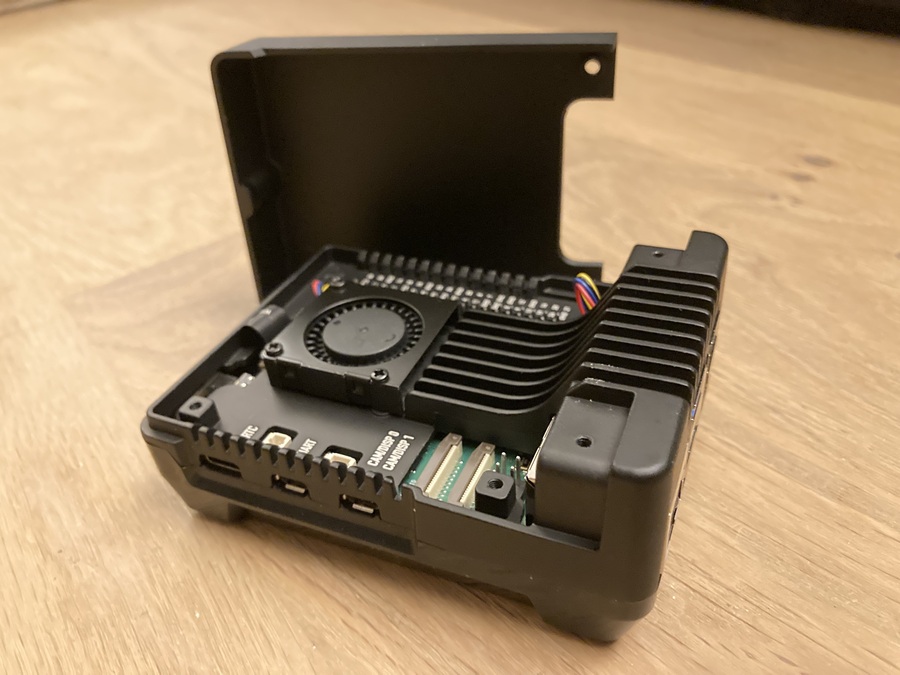
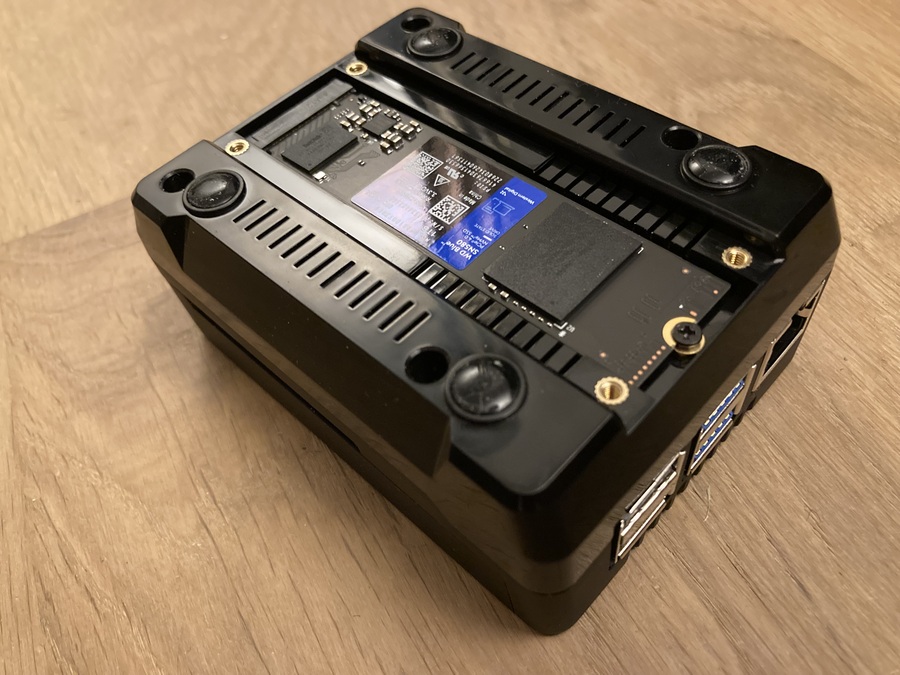
I wanted to experiment with self-hosting and decided to do it on a Raspberry Pi 5. One thing I’ve never been fond of with Raspberry Pi is the microSD card—it’s slow and unreliable. Thankfully, it’s now easier than ever to boot from an NVMe drive. These are my notes on setting it up and using it effectively.
I previously wrote a Raspberry Pi cheatsheet, but unfortunately, it has become outdated. For example, downloading the Raspberry Pi OS and burning it onto a microSD card with Etcher is no longer the most convenient method. Using the Raspberry Pi Imager is now a better option.
Prerequisites:
Launch Raspberry Pi Imager
Insert the SD card into the Raspberry Pi and power it on
SSH into the Raspberry Pi: ssh username@hostname
From this point forward, I will be leaning extensively on Jeff Geerling’s blog post.
Before switching anything, while still booted from the SD card, record a baseline:
sudo apt update
sudo apt install hdparm -y

sudo hdparm -t /dev/mmcblk0

/dev/mmcblk0:
 Timing buffered disk reads: 132 MB in  3.02 seconds =  43.71 MB/sec
SD performance varies widely by class and brand, so use your own number here.
sudo apt install git

# Install Jeff's rpi-clone
git clone https://github.com/geerlingguy/rpi-clone.git
cd rpi-clone
sudo cp rpi-clone rpi-clone-setup /usr/local/sbin

# Check the drives
lsblkIf nvme0n1 does not appear in the lsblk output, the Pi is not seeing the drive. Diagnose before changing config:
lspci
dmesg | grep -iE 'pcie|nvme'
In a working setup, lspci shows a PCIe bridge and an NVMe controller. If dmesg reports brcm-pcie 1000110000.pcie: link down, nothing electrical is reaching the external PCIe slot.
Causes, most common first:
Power off with sudo shutdown -h now, fix it, boot back up, re-run lsblk. nvme0n1 should now appear.
# Clone the Raspberry Pi OS to the NVMe drive, this should take a minute.
sudo rpi-clone nvme0n1sudo vi /boot/firmware/config.txtAdd the following lines before [CM4]:
# Enable the external PCIe port
dtparam=pciex1
# It is needed by the argon40
usb_max_current_enable=1sudo rpi-eeprom-config --editIt should be:
[all]
BOOT_UART=1
WAKE_ON_GPIO=0
POWER_OFF_ON_HALT=1
BOOT_ORDER=0xf416
If in nano, press Ctrl + O then Enter to save and Ctrl + X to exit.
sudo rebootAfter rebooting, the most reliable check is:
findmnt /
TARGET SOURCE         FSTYPE OPTIONS
/      /dev/nvme0n1p2 ext4   rw,noatime
If SOURCE is /dev/nvme0n1p2, the system booted from the NVMe.
You can also run lsblk for the full picture:
lsblk
NAME        MAJ:MIN RM   SIZE RO TYPE MOUNTPOINTS
mmcblk0     179:0    0  29.7G  0 disk
|-mmcblk0p1 179:1    0   512M  0 part /media/user/bootfs
`-mmcblk0p2 179:2    0  29.2G  0 part
nvme0n1     259:0    0 232.9G  0 disk
|-nvme0n1p1 259:1    0   512M  0 part /boot/firmware
`-nvme0n1p2 259:2    0 232.4G  0 part /
Two things to note: /boot/firmware is now on nvme0n1p1, and the SD card's boot partition auto-mounts under /media/<user>/bootfs as a regular removable disk. Both are signs the system is running from the NVMe.
Now booted from the NVMe, run the same test against it:
sudo hdparm -t /dev/nvme0n1

/dev/nvme0n1:
Timing buffered disk reads: 1354 MB in 3.00 seconds = 451.08 MB/sec| Drive | Buffered disk reads |
|---|---|
| SD card | 43.71 MB/sec |
| NVMe | 451.08 MB/sec |
Roughly ten times faster, which is exactly why the move is worth it.
This went smoother than I expected. Thank you, Jeff Geerling, for the detailed guide! While Argon provides a script that handles some of what Jeff covered, I wanted to go through the process myself to better understand it. For example, I chose not to enable PCIe Gen 3 since the port on the Raspberry Pi is only rated for PCIe Gen 2. I aim to self-host, and the last thing I want to deal with is an unstable connection to the drive.
 THPVG
THPVG